|
4 min read
Setting up auto-crawl for your AI Chat: always up-to-date answers
Read more



Great that you decided to continue with Wappy Premium! Below is an explanation of how to properly set up Google Tag Manager in a few steps for Wappy's WhatsApp widget. Don't have a Google Tag Manager account yet? Then first read this blog before following the steps below.
Last updated: 12 Feb 2026
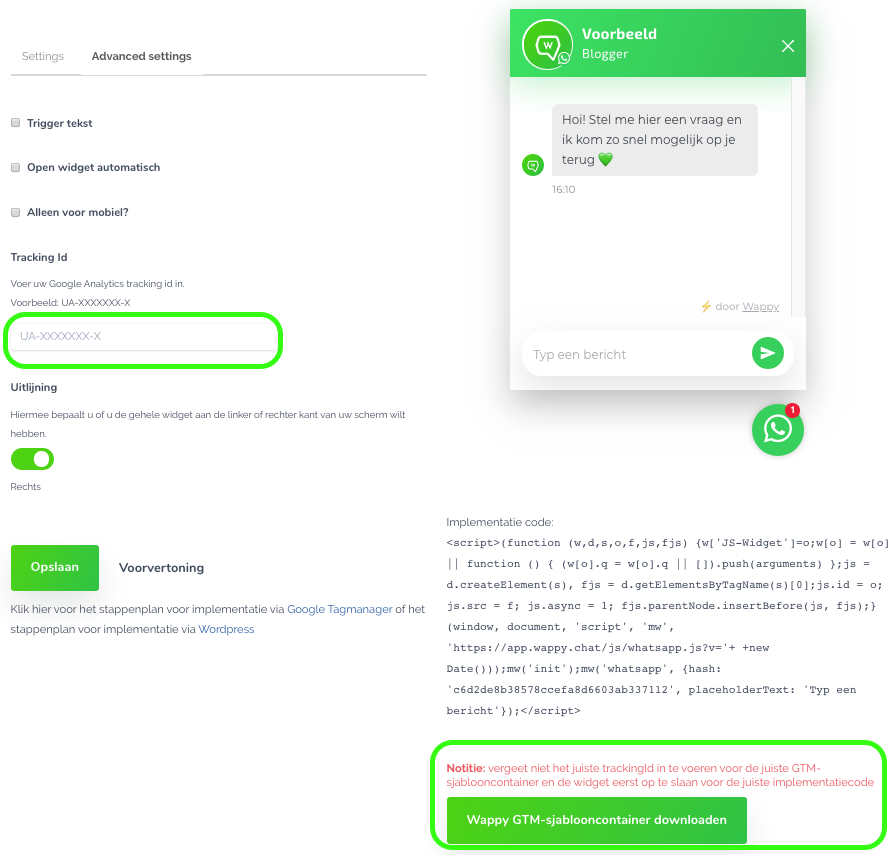
In your Wappy account, click on the WhatsApp widget you want to track. Go to 'advanced settings' here. If you have a Premium account, a green button with 'Download Wappy GTM template container' should now appear in the bottom right of your screen.
First, enter your Google Analytics Tracking ID and then click the green button. Your template will now be downloaded.
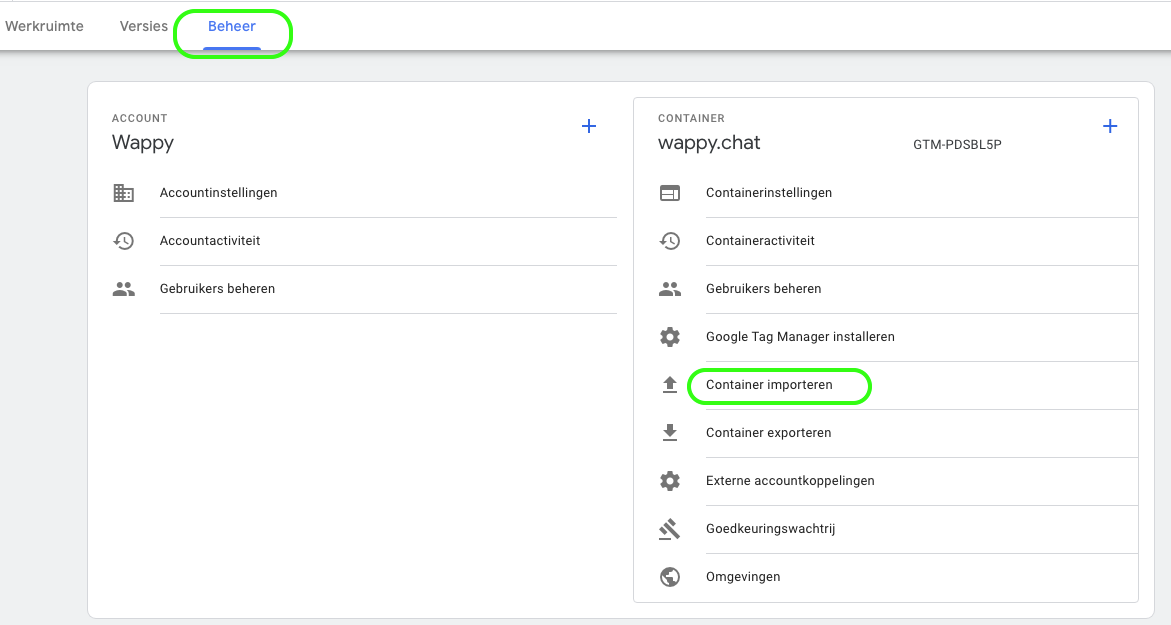
Log in to your Google Tag Manager account and go to admin (top left). Here you can click on 'import container'.
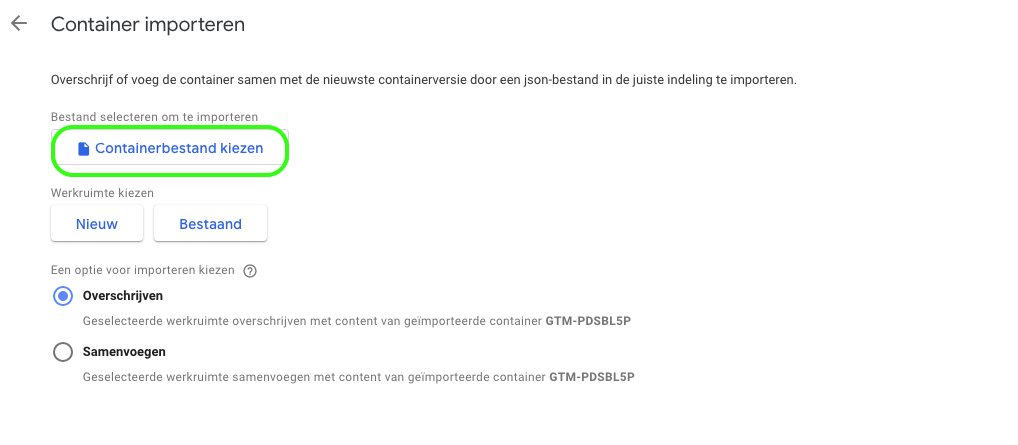
Your screen now looks just like the image below. Click on the button 'Choose container file' and select the file you just downloaded to your Wappy account (a .json file).
You can also choose whether you want to add this file to an existing workspace or to a new workspace.
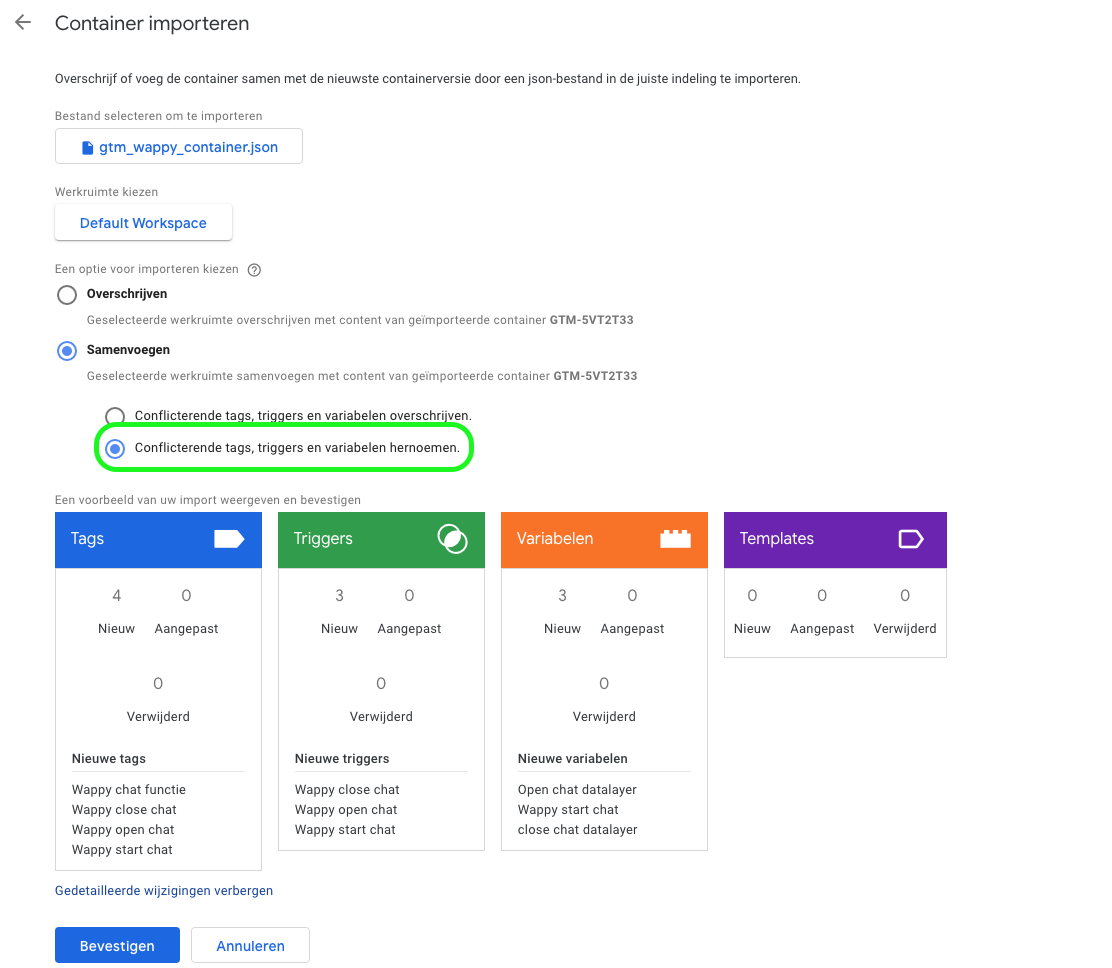
After importing the container, you can choose an import option. Select merge and then choose the option 'Rename conflicting tags, triggers, and variables'. This prevents any already existing components from being unintentionally removed. Click confirm and your Google Tag Manager is properly set up for Wappy!
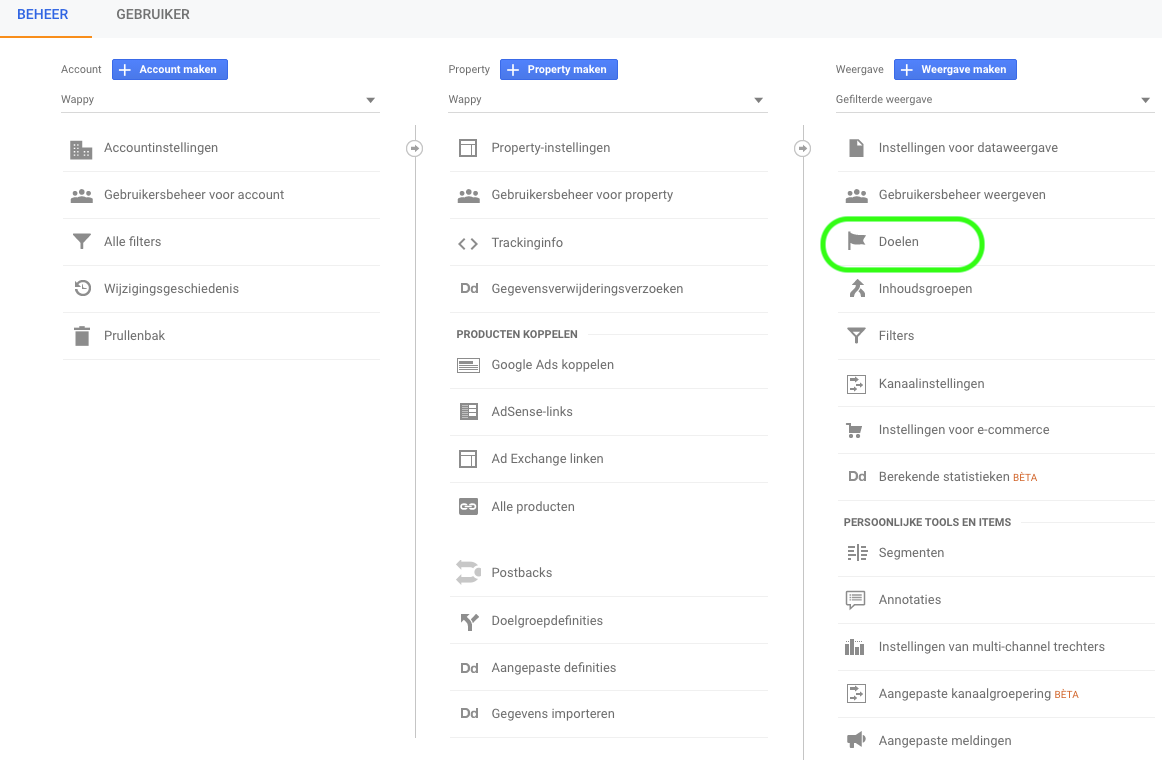
Now we want to ensure that the results of your chat are measurable in Google Analytics. For this, go to your Google Analytics account, click on admin (the gear icon in the bottom left), and then go to 'goals'. Click on the 'new goal' button here. Make sure that goal configuration is set to custom and give your goal a name under goal description. Then you can set up the goal under goal details.
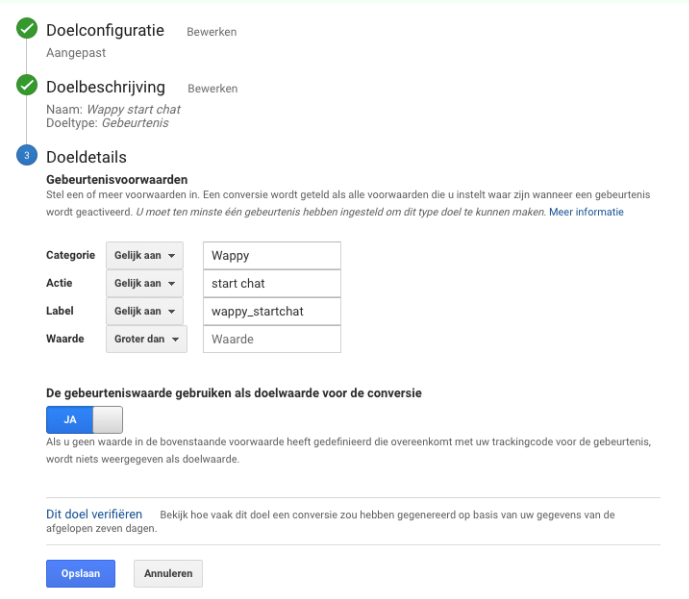
When setting up the goal details, you can choose between three things that you can make measurable: starting the WhatsApp widget, opening Wappy, and closing Wappy. In the image below, you can see how to set up Wappy for starting a chat.
To measure the starting of a chat, fill in 'Wappy' under category. Under action, fill in 'start chat' and under label 'wappy_startchat'. So for measuring the starting of a chat, the category is "Wappy". Action is "start chat" and the label is "wappy_startchat".
To measure opening or closing the chat, replace the word 'start' with 'open' or 'close'.
Congratulations! Now you just need to save and your chats are measurable. Want to know more about Wappy and the benefits of use? Then read one of our blogs!

niice
Wappy helps businesses connect with website visitors through WhatsApp. With over 2,400 websites using our widget, we share practical tips on WhatsApp Business and customer communication.
End of this Wappy article🤓


Do you want to try Wappy first? Then we have a free version available for you!
Over 2,400 websites use Wappy for customer contact