|
4 min read
Setting up auto-crawl for your AI Chat: always up-to-date answers
Read more



Have you already linked Wappy to your WhatsApp Business account? Great! Now your website visitors can contact you even more easily. For example, through the call function, where you can speak to your customers better and more professionally. However, if you would rather not be called via WhatsApp Business, read on.
Last updated: 12 Feb 2026
As we mentioned earlier, using WhatsApp Business is ideal for smaller businesses. By linking Wappy to your WhatsApp Business account, you can keep your work and personal conversations separate. Additionally, customers no longer have to wait on your website for their questions to be answered.
The calling feature that WhatsApp recently added can also offer possibilities. With this, you can respond to your customers in a neat and professional manner. However, this feature also means that when website visitors call you via the app, you must respond to them immediately. If you chose Wappy for that very reason, and the benefits do not outweigh the drawbacks for you, here are some tips for you!
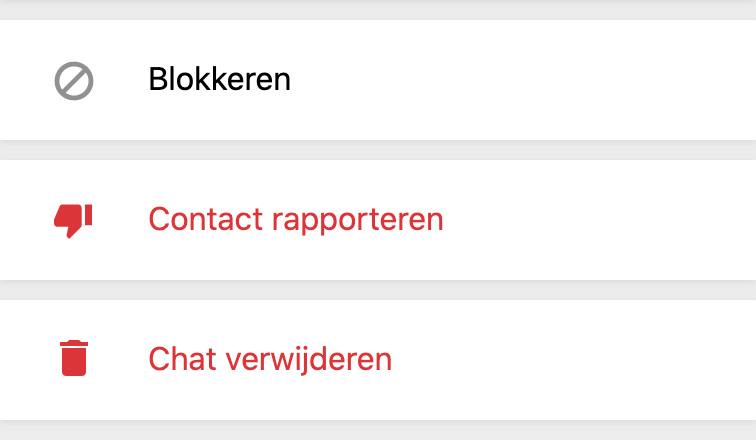
WhatsApp itself has a number of tips. For example, decline an incoming call, or block the person from whom you do not want to receive calls. You can do this by following these steps:
Step 1. Click on the chat with the person you want to block;
Step 2. Click at the top of the chat window on their name;
Step 3. Scroll down until you see 'block'. Click on it.
Secondly, it is possible to turn off notifications for calls. This means that calls will still come in, but they will not make any sound, and thus they will disturb you less. For this, go to your settings in WhatsApp Business > notifications. Scroll down until you reach 'calls'. Set 'ringtone' to silent and 'vibrate' to off.

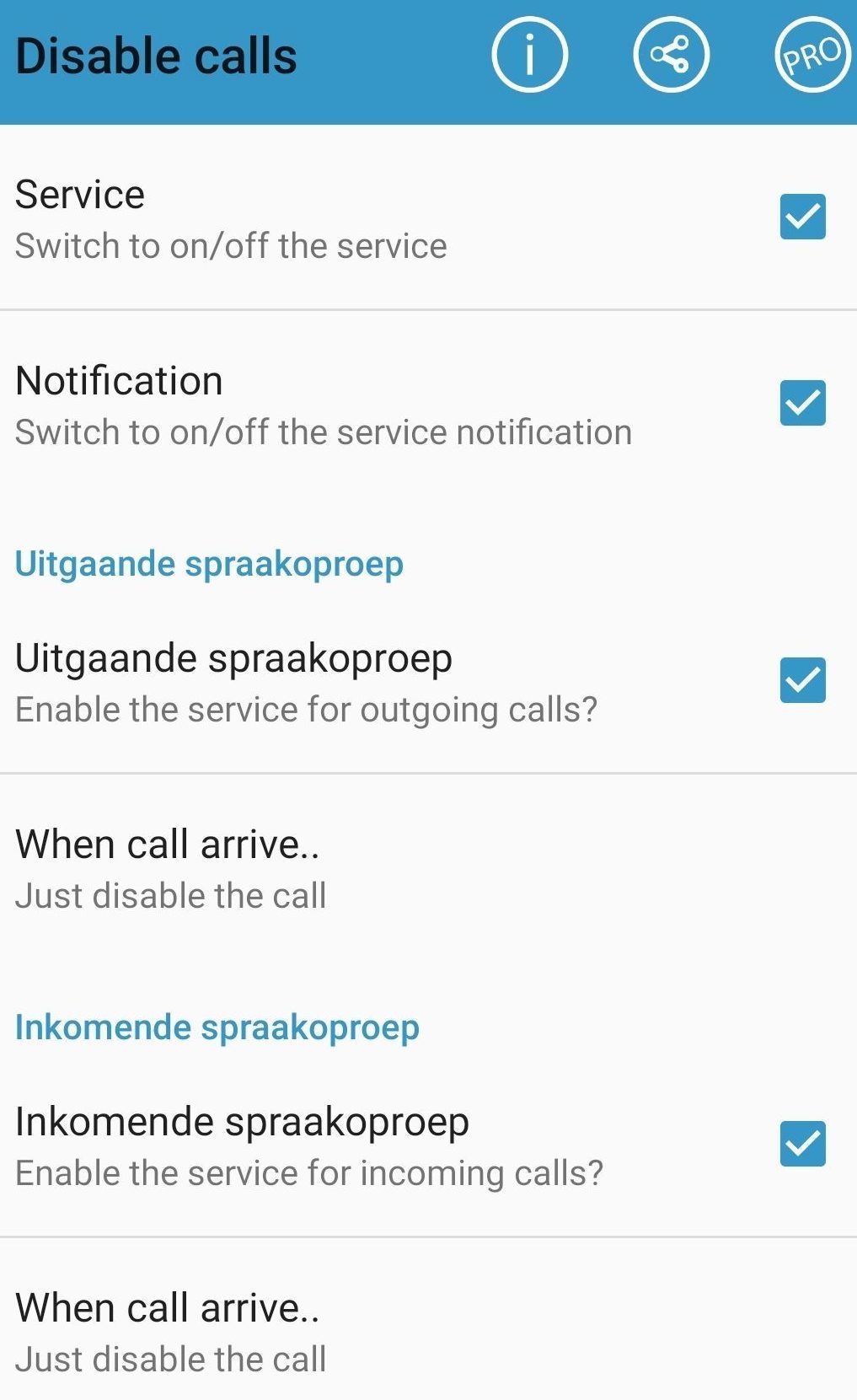
Additionally, there are apps available for download that disable calls. One of these applications (currently only for Android) is Tools for WhatsApp. This app is not from WhatsApp Inc, but it does work for WhatsApp and WhatsApp Business. You can download the app for free from the play store and then try it out for a week for free.
To use Tools for WhatsApp, follow these steps:
Step 1. Download and install the app;
Step 2. Open the app. You will now be asked if you give Tools for WhatsApp access to your photos, media, and files, permission to start and manage phone calls, and if you grant access to your contacts. By accepting these three questions, you can use the application.
Step 3. Click on ‘switch to on/off the service’. The app will now go to your settings where you need to give Tools for WhatsApp access to your notifications. Once you have done this, you can return to Tools for WhatsApp.
Step 4. Make sure all boxes are checked in the ‘disable’ screen, just like in the image below. For ‘when call arrives’, choose ‘just disable the call’.
Step 5. You are now ready! Calls via WhatsApp (Business) will now be rejected.
Bonus step. Although the app immediately disconnects calls, you will receive a notification for about a second that someone is trying to call you. By turning off your call notifications in WhatsApp Business (see ‘turning off notifications in WhatsApp Business’), you will no longer see these notifications!
And then there is one last option, but certainly not the least. Although WhatsApp Business is almost the same as WhatsApp, it has a number of extra features that you can read more about in this blog. One of these features is that you can set up automatic replies. This way, you can set it up so that when someone contacts you outside of business hours, they receive a response. An example of this can be seen below.
In this message, you can also mention that calls via the application are not desired. This way, a lot can be resolved! For example, say:
“Good that you are contacting us! We usually respond within an hour. In the meantime, we would like to ask you not to use the call function of WhatsApp. If you have an urgent question or comment, please call us at ...”


niice
Wappy helps businesses connect with website visitors through WhatsApp. With over 2,400 websites using our widget, we share practical tips on WhatsApp Business and customer communication.
End of this Wappy article🤓


Do you want to try Wappy first? Then we have a free version available for you!
Over 2,400 websites use Wappy for customer contact