|
4 min read
Setting up auto-crawl for your AI Chat: always up-to-date answers
Read more



WhatsApp Business has a number of specific business tools that WhatsApp itself does not have and are very useful for your company. One of these tools is that you can use labels to organize your chats and messages. Add a label to a chat or even to a specific message within a chat. This way, you can easily find chats and messages again. You can use different colors for labeling.
Last updated: 12 Feb 2026
To add a label, press and hold a message or chat and click on ‘label’. You can now add a new or existing label.
Do you want to find labeled content or manage your labels? Then go to ‘more options’ (the three dots in the top right corner of the WhatsApp Business app) and click on labels. Here you can
You can create labels entirely to your liking. Do you have a business with different departments and want to categorize your customers accordingly? Then you can label the chats based on that! Would you prefer to use the labels to keep track of payments? Then use labels like ‘new customer’, ‘new order’, ‘waiting for payment’, ‘paid’, and ‘order completed’. You can also choose to use labels like ‘customer inquiries’ or ‘complaints’ or even ‘tips’. Use the labels in a way that makes work easier for your business.
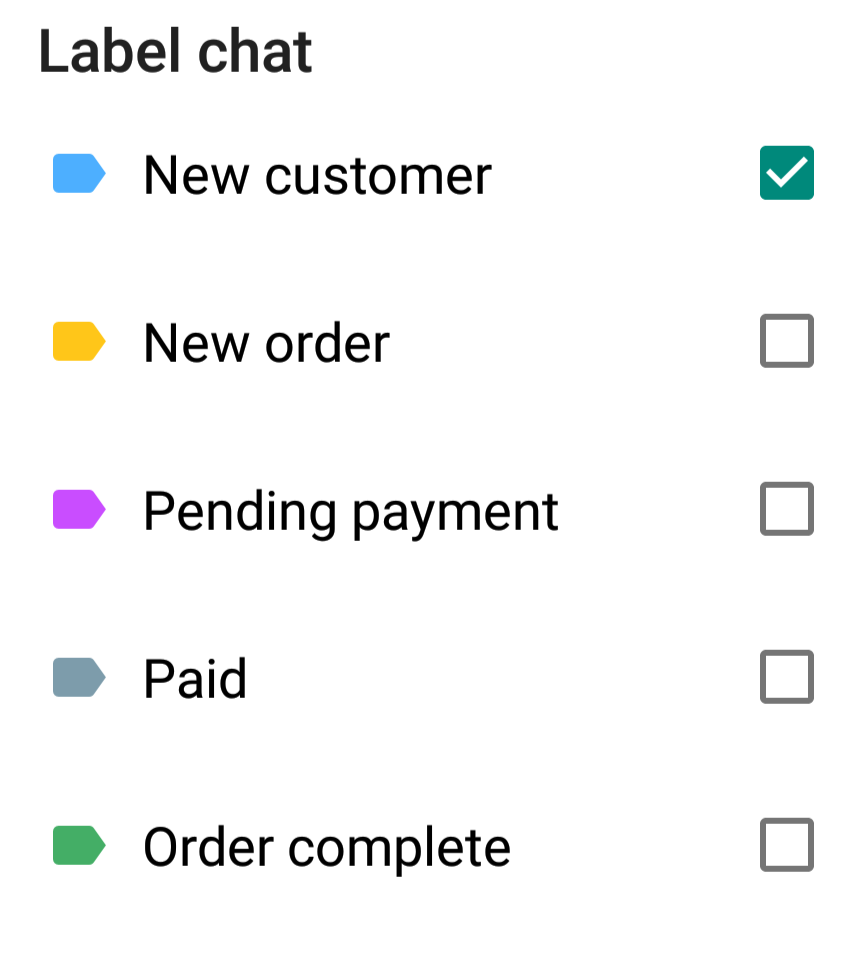
In the original WhatsApp app, there was the option to create broadcast lists. You also have this option in WhatsApp Business, with an addition. You can create broadcast lists for specific recipients based on your labels. You do this by clicking on the label for which you want to create a broadcast list. Now go to ‘more options’ > ‘send message to customers’ and click on the green checkmark at the bottom right of your screen. Your message will then be sent individually to all chats that fall under this label!
Labels provide clarity, but also convenience. You can easily and quickly find messages and chats, and you can even send a message to every chat under that label all at once. Just keep in mind that you can create a maximum of 20 labels. Labels help you save time and energy, time and energy that you can then spend on connecting with your customers!
The labels that WhatsApp Business offers you can, if used correctly, significantly improve your customer service. They provide you with order and help you remember which customers you still need to follow up with. You also learn what common questions customers have, which you can then anticipate. Do you want to make contact with (potential) customers even easier and more personal? Then create a Wappy account for free!
63% of people say they have chatted more with businesses in the past two years.
Place the Wappy WhatsApp widget on your website and make it easy for website visitors to send you a WhatsApp message. Take the next step towards better customer service with Wappy.

niice
Wappy helps businesses connect with website visitors through WhatsApp. With over 2,400 websites using our widget, we share practical tips on WhatsApp Business and customer communication.
End of this Wappy article🤓


Do you want to try Wappy first? Then we have a free version available for you!
Over 2,400 websites use Wappy for customer contact